Client view
This is what your client sees when they open your share link — no account, no signup. Optimised for fast viewing on any device.
Opening & password
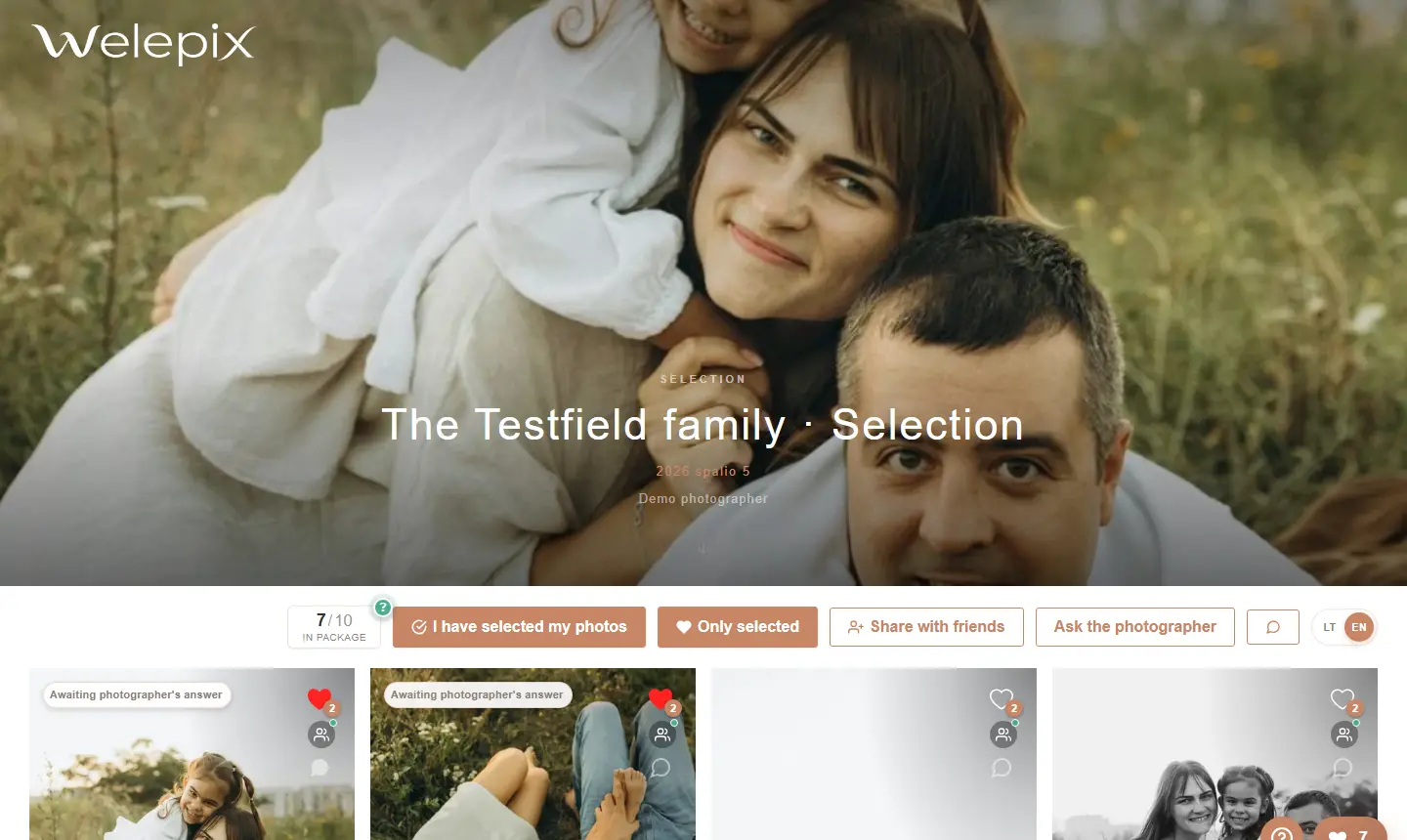
The client clicks your link — the gallery cover loads with your logo, client name and, if set, a password prompt.
Browsing photos
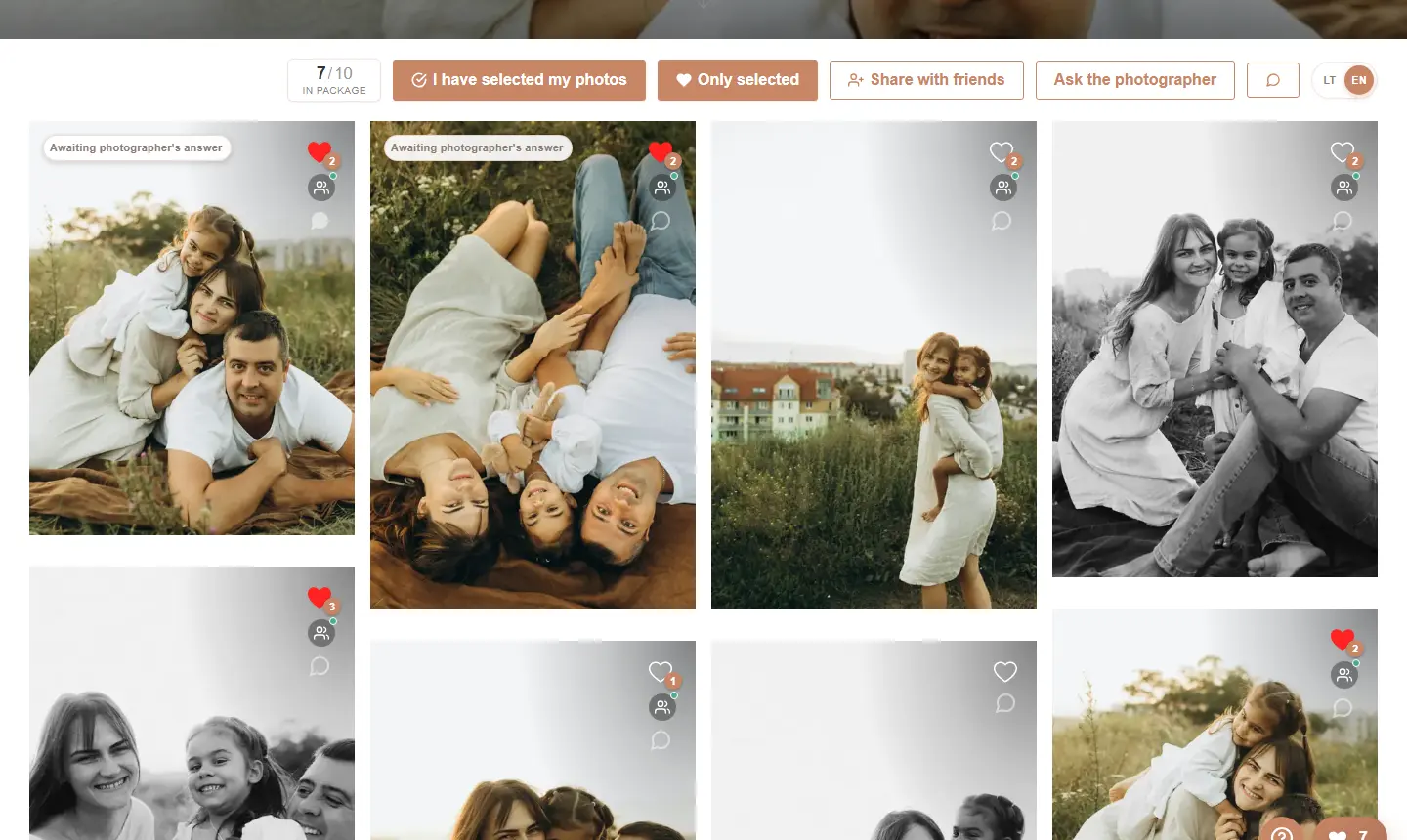
The client sees all photos in your chosen layout (Grid / Masonry / Mosaic). Tapping one opens a full-size preview with prev/next, swipe gestures on mobile and keyboard shortcuts.
Selection & „Liked only" filter
If you allowed selection — clicking ❤️ on a photo marks it as picked. Selections save automatically, no account needed for the client.
There's a separate „Show liked only" toggle — the client can switch to a filtered view of just the picked photos. Full-size preview navigation also limits to picked-only in this mode.
„Pick N" with counter
If you set a selection limit in the share page settings, the client sees a live counter („Selected: 12 / 50") and, on hitting the limit, an option to pay for extras with your bank details for payment.
Downloading
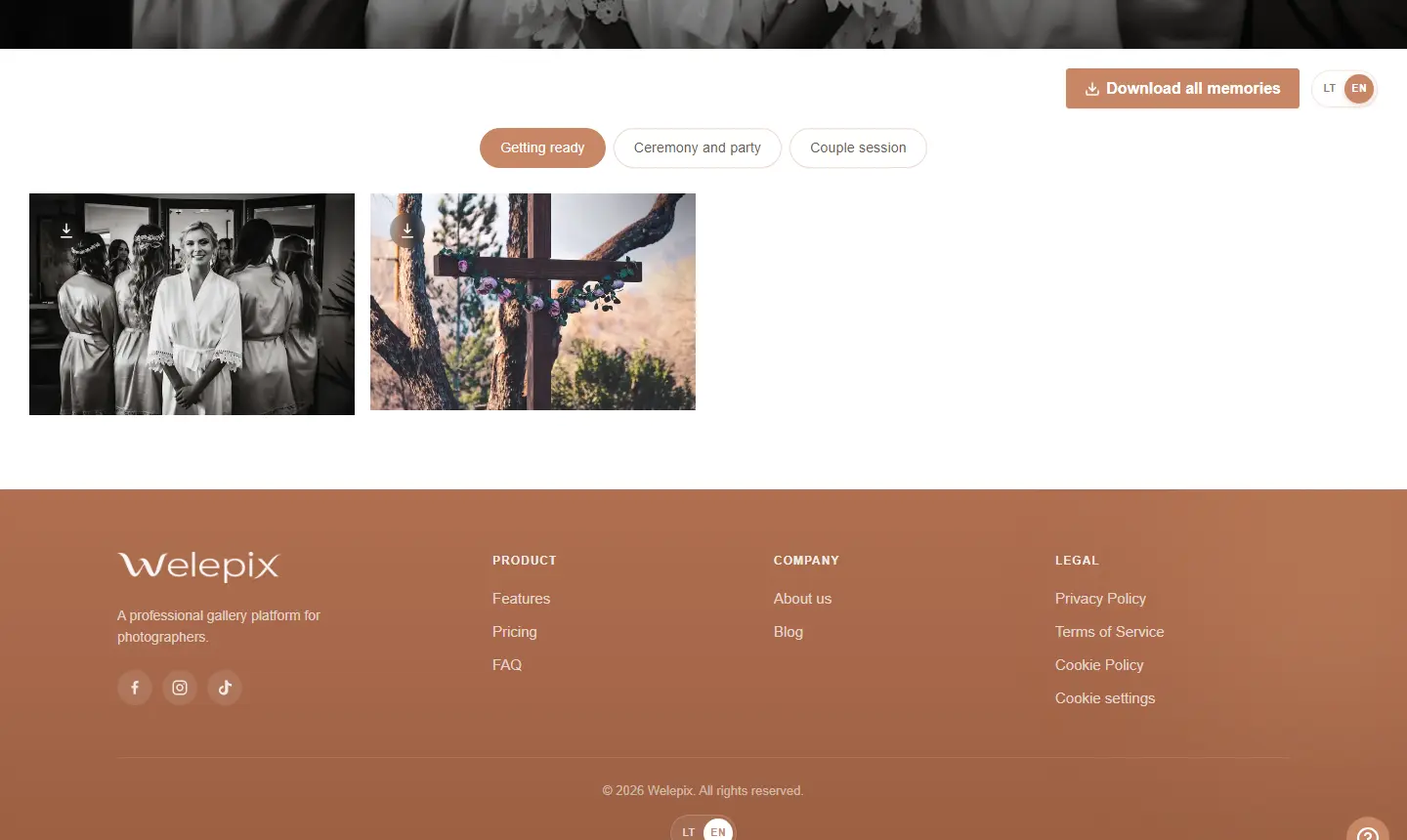
The client can download a single photo or the whole pack as a ZIP (if you enabled this). Progress is shown during download.
Testimonial modal after download
Once the download finishes — the client gets a soft modal asking „Did you enjoy working with you?" with a 5-star rating. They can leave a name, comment and a permission to publish publicly. All testimonials land in your /testimonials dashboard.
Ask the photographer
When enabled, during selection the client can ask for your advice right next to the photos — for example, „which of these two should I pick?". No emails or messaging apps: the question stays attached to the specific frames.
- Question on photos — the client marks a few photos and writes a question
- Your answer — you reply from the „Questions" inbox; the client gets notified
- Unread badge — the client sees that you replied (a badge on the messages button), without any account
You enable this in your settings — it only shows when you allow selection.
Viewing in the app
If screenshot protection is on for the link, your client opens the gallery not in a browser but in the Welepix app on an Android phone or in Welepix Client on a Windows computer. No account is needed and everything works the same, except screenshots and screen recordings.
In a browser screenshots can't be blocked, but attempts are noticed: the client sees a warning and you see it in your statistics. More on the Screenshot protection page.
How do I configure this?
You control all of these via share page settings.
