Statistics & analytics
After every share page session — you see exactly how the client engaged with it: which photos they spent the longest on, which they opened full-size, who specifically viewed them (the client themselves or the friends they invited to help pick), which caught their attention most. Helps you understand the client and improve future selections.
Statistics page
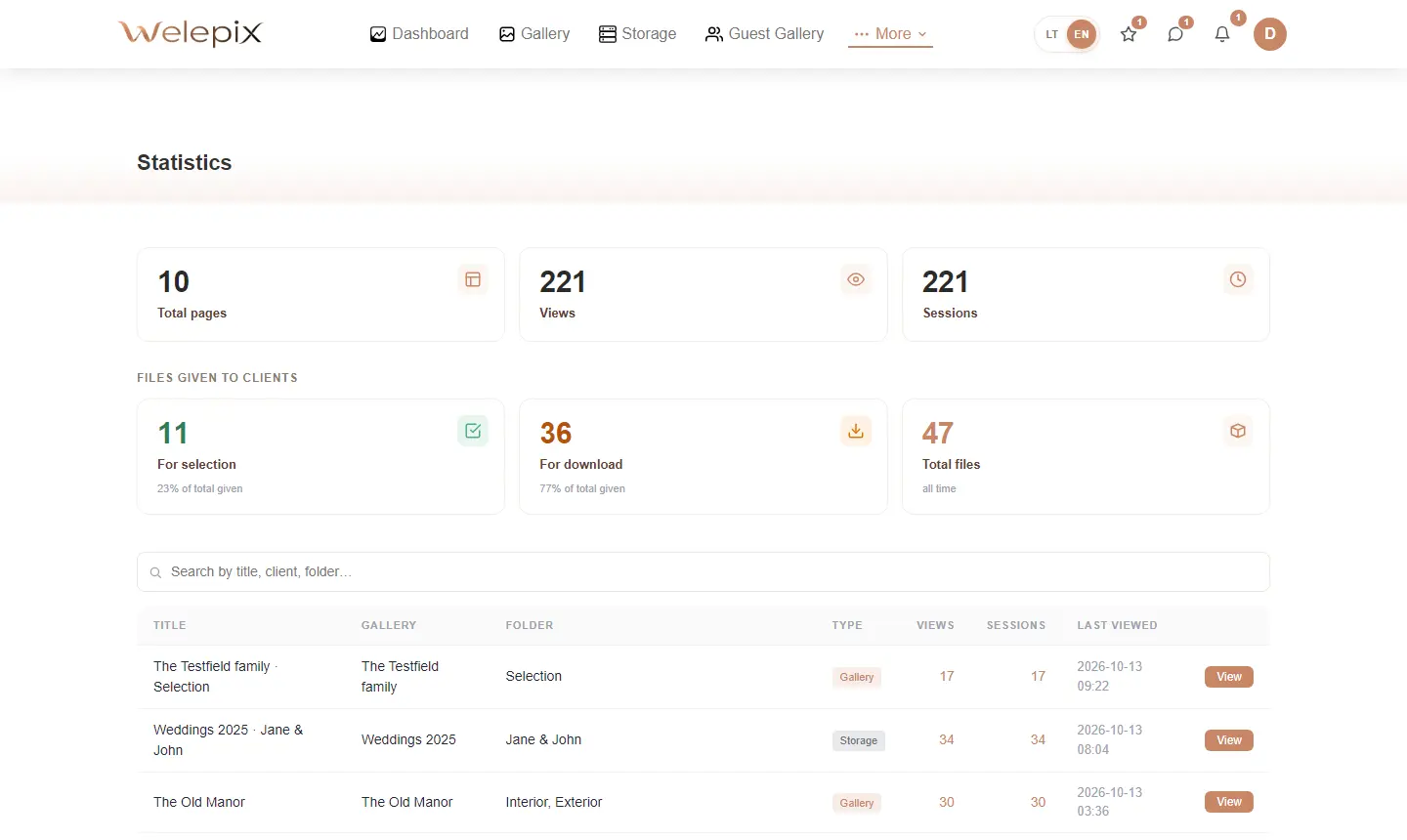
From the main menu, click Statistics — the top of the page shows 6 summary cards, and below them — the list of all your share pages.
Summary cards
Two rows of aggregated KPIs at the top:
- Total pages — how many share pages you've created, with breakdown of active vs deleted
- Views — total view count across all pages
- Sessions — distinct browsing sessions
Below — "Files given to clients" section with lifetime counters:
- For selection — how many photos you've ever delivered to clients for selection (across all selection-enabled share pages)
- For download — how many photos delivered for download (from galleries or storage)
- Total files — sum across the lifetime of your account
These numbers never decrease, even if you later delete files or a client unselects a photo. Cumulative metric reflecting the volume of your work.
Search and filtering
You can search the page list by title, client, or folder. The "Hide deleted" checkbox hides deleted share pages from the list (enabled by default). At the bottom — pagination with 20 / 50 / 100 entries per page.
Individual share page analytics
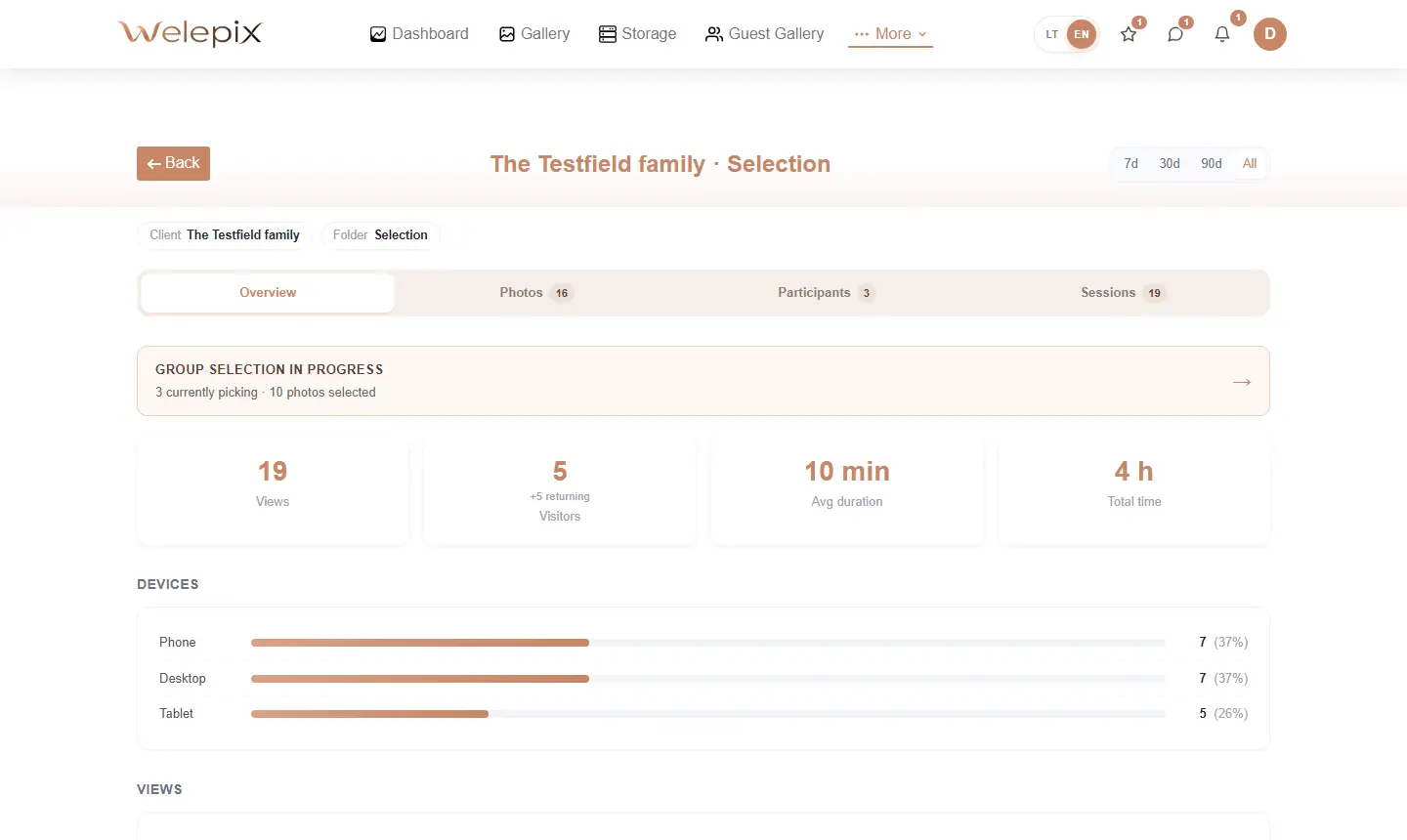
Clicking "View" next to a specific row opens the full analytics panel, organized into 4 separate tabs:
Overview tab
- 4 hero cards: views, visitors, average duration, total time
- Device breakdown (desktop / tablet / phone)
- Views chart over time
- If group selection is active — a mini card linking to the Participants tab
Photos tab
Table with individual metrics for each photo:
- Visible — how long the thumbnail was visible on screen
- Viewers — how many distinct people viewed the photo (client + friends who liked it)
- Full-size opens and duration
- Likes — total likes count. If friends participated, hovering shows "X client + Y friends"
- Downloads and Screenshots
Each photo row has a chevron button — expanding it reveals a per-participant drilldown: you see EACH person's (the client's and each invited friend's, separately) individual viewing time, full-size opens, and time spent on the photo. Perfect for seeing which specific photo was most interesting to each participant.
At the bottom of the table — search by filename and pagination.
Participants tab (when group selection is active)
This tab is visible only when the client has enabled group selection with friends. Shows:
- 3 status cards: how many are currently picking, how many friends are done, how many photos selected
- Participants table: the client (main link) + each invited friend with their pick count and status ("Picking" / "Done")
- Drilldown on each participant — reveals which photos they viewed and how long they spent on each
Sessions tab
List of the last 20 browsing sessions with timestamp, duration, device, and number of opened photos.
Date range filters
All Overview tab metrics (views, sessions, chart) can be filtered by selected window: 7 days / 30 days / 90 days / All time. Useful to separate the initial "first wave" of browsing from later return visits.
CSV export
One click downloads the full Photos table as a CSV (with UTF-8 BOM so Lithuanian characters open cleanly in Excel). Handy for client reports or your own workflow analysis.
Snapshot — stats survive deletion
Even if you later delete a share page or folder — the stats records stay, with full context (client name, folder title, share page title). Such records appear in the list with a "(deleted)" tag, but all the numbers remain visible. Handy for long-term analysis — compare this year's vs last year's selections, even if the old folders are long gone.
Mobile and tablet
Statistics works down to 400px screen width: tabs scroll horizontally, tables scroll as needed, cards reflow into 2 columns. All functionality is accessible from a phone.
Related
Where the stats come from — see The client view. About group selection with friends — see Share pages. To see the likes more directly after a selection — see Selected photos workflow.
